
Slide Remote - PPT Clicker
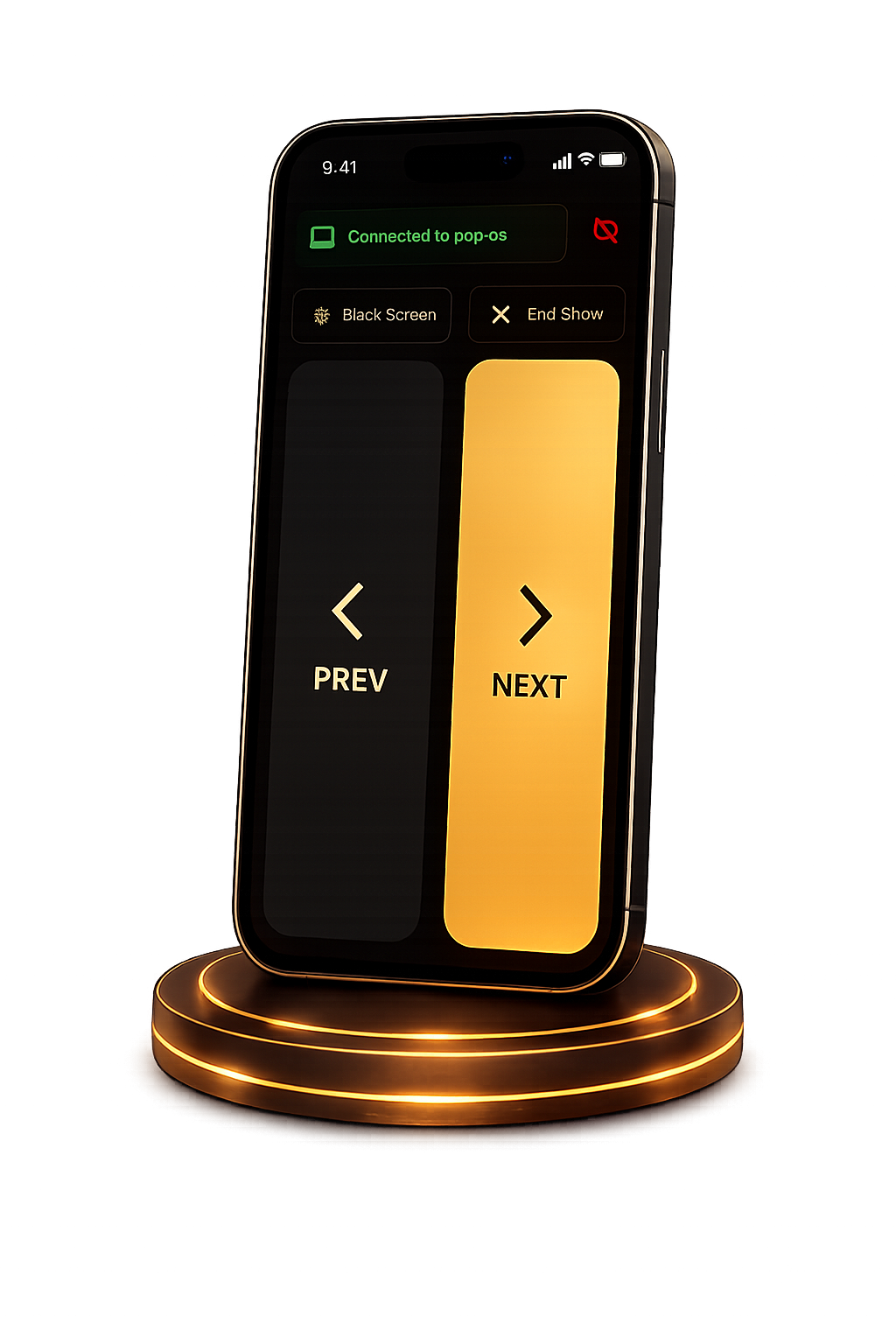
Forget the expensive clicker you forgot at home. Slide Remote: PPT Clicker turns your phone into a wireless presenter — pair it with the Mac companion app via QR in seconds, then control slides over your local Wi-Fi with no internet and no complex setup.
Get Slide Remote
on Your Phone
Scan the QR code
below to download the app from
Google Play Store.
Explore Key Features
Everything you need to deliver a flawless wireless presentation.
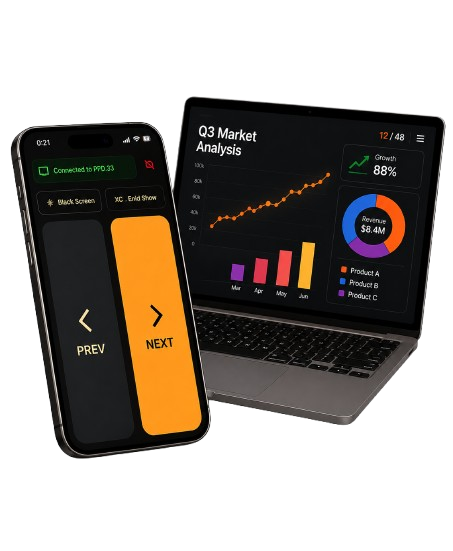
Phone as a Slide Clicker
Turn your iPhone or Android phone into a wireless presentation remote with no physical clicker required.
One-Tap Slide Control
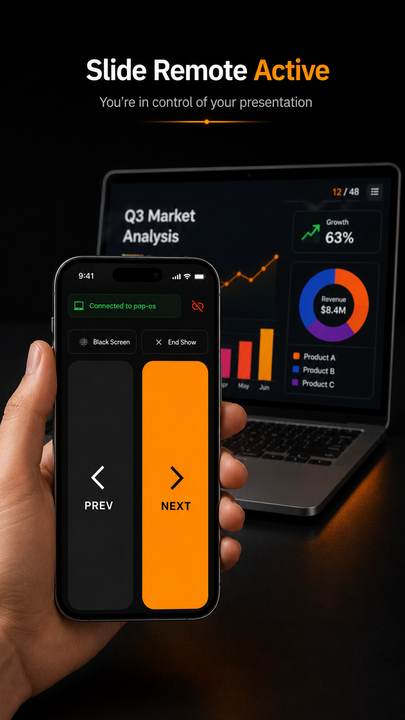
Advance or go back through slides instantly with dedicated Next and Previous buttons.
Black Screen Control
Quickly toggle a black screen during presentations using the same shortcut as PowerPoint’s “B” key.
End Presentation
Exit the slideshow remotely with a single tap, just like pressing the Esc key on your keyboard.
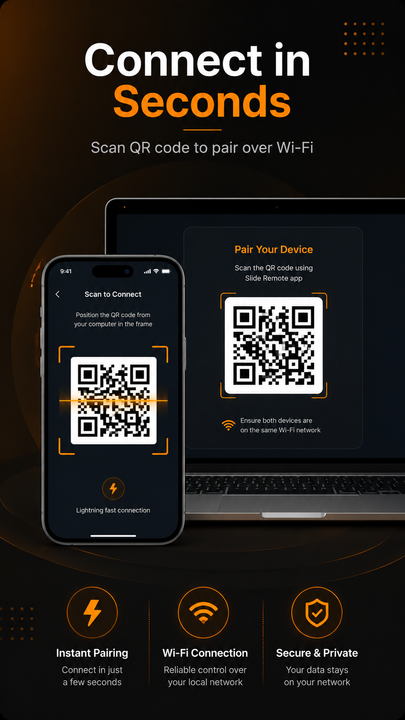
QR Code Pairing
Connect your phone to your Mac quickly by scanning the QR code displayed by the Mac app.
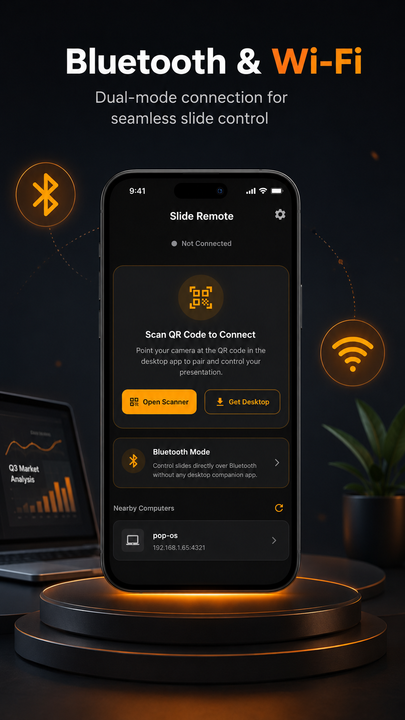
Automatic Device Discovery
Easily find and connect to your Mac automatically when both devices are on the same Wi-Fi network.
No IP Address Typing
Enjoy a simple setup without manually entering IP addresses or using Terminal commands.
Secure Session Pairing
Uses a fresh QR code or pairing code for each session to prevent unauthorized devices from controlling your presentation.
Simple Status Indicator
A clear connection status shows when your phone is successfully connected to the Mac.
Multi-App Compatibility
Works with PowerPoint, Keynote, Google Slides, PDF viewers, and other shortcut-enabled apps.
Local Network Communication
Control presentations over your local Wi-Fi without requiring an active internet connection.
Launch at Login
Automatically start the Mac companion app when you log in, so the remote is always ready when you are.
Conference-Friendly Connection
Supports using your Mac’s own Wi-Fi network when venue networks block device-to-device communication.
Mac Accessibility Integration
Uses macOS Accessibility permission to send keyboard commands directly to the active presentation.
Privacy-Focused
Communication stays on your local network, with no need to send presentation controls or data to an external server.
Typical User Flow
-
1
On your Mac
Download Slide Remote and drag to Applications. Open it (lives in menu bar).
-
2
Accessibility Permission
Click “Open Accessibility Settings” and switch Slide Remote on. This is required.
-
3
On your phone
Install Slide Remote from the App Store or Play Store. Connect to the same Wi-Fi.
-
4
Scan to connect
Open Mac menu icon for QR code. On phone, tap Scan to connect.
-
5
Active Window
Open your slides on Mac and ensure the window is active.
-
6
Start Presenting
Use NEXT (→), PREV (←), Black screen (B), or End show (Esc).
Why Choose Slide Remote
The easiest way to control your presentations seamlessly.
Phone as a wireless slide clicker
QR Code & Auto Discovery pairing
Zero IP typing or Terminal setup
One-tap Next, Prev, Black Screen & Esc
PowerPoint, Keynote & PDF support
100% Privacy-focused & local network
How it works
The phone app sends a tap (“next slide”, “previous slide”) to a small companion app running on your Mac. That app presses the same keyboard shortcut you’d press yourself (Right Arrow, Left Arrow, etc.).
It works with PowerPoint, Keynote, Google Slides, and PDF viewers without any setup inside those apps. No physical remote, no Terminal, no typing IP addresses — just two quick installs, then tap to connect every time after that.
Offline Operation
Presentation control remains entirely local.
Secure & Private
No personal data collected or shared.
App Screenshots
 Companion App
 Presentation Mode
 Connection UI
Slide Navigation
Companion App
Presentation Mode
Connection UI
Slide Navigation
Connection UI
Slide Navigation
Companion App
Presentation Mode
Connection UI
Slide Navigation
Frequently Asked Questions
Almost always the Accessibility permission. Open the Mac app and confirm it’s switched on in System Settings.
Confirm both devices are on the same Wi-Fi network. Automatic Device Discovery will find your Mac instantly without typing any IP addresses.
Conference Wi-Fi networks often have client isolation enabled. Use your Mac’s Internet Sharing / Hotspot feature to connect your phone directly to the Mac.
No. Communication stays entirely on your local Wi-Fi network with no external server or internet connection required, making it 100% privacy-focused.
Each session generates a fresh QR code and pairing token. Unauthorized devices on the network cannot interrupt or control your slideshow.
Yes, enable “Launch at login” in the Mac companion app menu bar options so it's ready automatically every time you start your laptop.
.png)